Welcome to my Football Manager Blog, the main purpose of this blog is to provide updates on the status of my Football Manager Skins & Guides Website

If you have any questions or queries then I can generally be found in the Skinning Forum at the Official Sports Interactive Forums, though I'd ask you to open a new thread rather than sending me a message.

To help with navigation I have included indexes of my content for the last few versions of Football Manager in the tabs below.

Monday, 22 October 2018

Football Manager 2019 Touch Base Skins


As with recent Football Managers to make certain changes in Football Manager 2019 you are required to add files to the skin folders, whilst this isn't a problem for fan-made skins it is a slight problem if you are using the Default Skins included with the game. So to help people out I have again made some Base Skins for FMT2019 that allow you to add and modify the default skins without breaking your game.

However I don't really use the Touch mode and with it now getting patched separately I'm not always able to keep up with it so the Touch Mode Skins this year are fairly basic and you'll need to extract the font files and settings yourself if you wish to alter them.

Full instructions on when and how to use the Base Skins can be found on the download page, please ensure you read the page in detail before downloading the Base Skins as it will save you problems in the future.


Currently there are four versions of the Base Touch Skin - one based on the Dark Skin and one based on the Retro Skin with a Touchscreen version of each also included.

If you have any further questions on the Base Skins please ask any questions in the Skinning Hideout on the Official SIGames Forums.

Sunday, 21 October 2018

Football Manager 2019 Base Skins


Please note that these skins will only work with the Full Mode of Football Manager 2019, Football Manager 2019 Touch Mode Base Skins will be released separately during the week.

As with recent Football Managers to make certain changes in Football Manager 2019 you are required to add files to the skin folders, whilst this isn't a problem for fan-made skins it is a slight problem if you are using the Default Skins included with the game. So to help people out I have again made some Base Skins for FM2019 that allow you to add and modify the default skins without breaking your game. 

Thankfully over the last few years some more stuff has been moved out of the skins folder so you only really need the Base skin if you are wanting to edit the skin graphics, fonts or colours. If you want to edit the match graphics or the most of the panel xml files you no longer need really need the base skins.

Full instructions on when and how to use the Base Skins can be found on the download page, please ensure you read the page in detail before downloading the Base Skins as it will save you problems in the future. 

Also note that these are based on the Pre-Release Beta files at the moment so things are likely to change between now and release, however unless something major comes up I'll likely just update them with the Release Version files rather than with each Beta update.

Currently there are three versions of the Base Skin - one based on the Default Skin, one based on the Dark Skin and finally one based on the Light Skin for the Full Mode of FM2019.

If you have any further questions on the Base Skins please ask any questions in the Skinning Hideout on the Official SIGames Forums.

Friday, 19 October 2018

Football Manager 2019 - How To Locate or Move Your User Data Location


Since Football Manager 2016 the Preferences menu no longer lists or allows you to change your User Data Location, this feature was removed from the game because it was confusing people.

Your User Data Location is the place on your hard drive where user generated content is stored, this includes data generated by the game such as save games, tactics and shortlists. It also includes graphics (kits, logos, faces etc) and skins that you may have downloaded or created.

This guide explains where your default User Data Location is stored and also explains how to move it if you wish.

These instructions are largely the same as they were for Football Manager 2018.

Football Manager 2019 Pre-Release Beta Now Out


For those of you who have pre-ordered a digital copy of Football Manager 2019 you should now have access to the Pre-Release Beta.

Over the next couple of weeks I'll be working on getting stuff checked and updated for Football Manager 2019, though most of the guides from FM18 should still apply so you can use them as a starting point for the moment, however FM18 skins won't work on FM19 whilst my various mods may or may not as that will depend on what has changed in FM19 though updated versions should follow in the next few weeks. (More than likely after the full release of the game.)

Wednesday, 3 October 2018

Football Manager 2019 Features Announced


If you aren't already aware the key new features of Football Manager 2019 were announced last week with the full game due for release on 2nd November 2019, with the Pre-Release Beta out two weeks before for those of you who have pre-ordered a digital copy of the game.

For details on the announced features have a look at the Official Football Manager Website.

From a look at the released screenshots it doesn't look like the underlying look of the game has changed much so it hopefully shouldn't take long to update everything for FM19, though this likely won't be until after the full release when I'll have access to the actual game files.

In the meantime I'll try and get some of the background stuff ready in time for the release of the game and you'll likely notice some slight tweaking of my sites as with the new FM branding it's a good time to update the feel of my sites.

Friday, 2 March 2018

Football Manager 2018 - Patch 18.3.0 Updates


With patch 18.3.0 and the Winter Transfer Update now released I have updated the below mods and skins for patch 18.3.0.

Note that these updates are for the Full Mode only as the Touch Mode patch hasn't been released yet.


Base Skins

- Couple of colour tweaks and added in colours for match conditions for the light and default skins.


Match Review Screen Mods

- Fixed the problem with the logos being cut off and couple of minor tweaks to bring in line with patched files.


Match In-Between Highlights Panel Mod

- Updated to bring in line with patched files and files used in Review Screen Mod.


Match Day Backgrounds Mod

- Updated to bring in line with patched files.


If you have any further questions then as always please ask any questions in the Skinning Hideout on the Official SIGames Forums.

Thursday, 1 March 2018

Football Manager 2018 - How To Replace the Pitch Textures

 
FM18 has made a couple of changes to how the 3D stuff works which has lead to some confusion on how to replace the pitch textures.

This is a quick guide that explains how to replace the pitch textures.


1. Locating the Default Textures

NOTE: You only need to follow this part if you are wanting to create your own pitch textures as it's easier to edit the existing files instead of creating fresh ones, if you have downloaded a texture pack from the internet then just ignore this part and skip to section 2.

One of the main changes FM18 has made to the 3D graphics is that they are now packed into fmf files, so to get to them you need to extract them first, (if you don't know how to extract them then read this guide).

The textures you need are located in the 'simatchviewer-pc' fmf file which is found in the \steamapps\common\Football Manager 2018\data\ folder of where you installed FM18.

You can either extract the full contents of this fmf file or you can just extract the contents of the textures\pitch folder as this is the only folder we are interested in.


2. Installing your Custom Textures

Once you have downloaded or extracted the default files (if you are creating your own) browse to your User Data Location which by default is:

\Documents\Sports Interactive\Football Manager 2018

Inside this folder you now need to create a new folder called 'textures'.

Next open your new textures folder and create another new folder this time called 'pitch'.

Now open the pitch folder and this is where you need to place your pitch graphics.

If you have extracted the default files to edit yourself then copy the files called detail_grass_1 through to detail_grass_7 into this folder as these are the files that FM18 uses for the pitch. The other files in this folder aren't important as you shouldn't need to edit them, whilst as far as I can tell the files in the various weather sub-folders aren't used by FM18 so you can ignore them. Though the game does still use the files in the clay, gravel, sand and synthetic folders for the rare occasions when you use one of those pitch types so you can copy those folders over as well if you want. (Note that the mixed type still uses the general grass files).

If you have downloaded a texture pack from the internet what you need to do depends on what version of FM the texture pack was made for.

If you have downloaded a FM18 texture pack then you should just need to extract the contents of the download and place the detail_grass dds files into the pitch folder as the pack creator should have already given them the correct names.

If you have downloaded a pack made for a previous version then you will need to modify it. First extract the files and depending on the pack you'll likely have several sub-folders with a grass file inside each folder. What you need to do is copy the grass file directly to the pitch folder and then rename it.

For FM18 your files need to be named 'detail_grass_1', 'detail_grass_2' through to 'detail_grass_7'.

Unfortunately I don't have the full details of when each pitch type is used, but as best as I can tell they seem to reflect the condition of the pitch with 'detail_grass_1' being used for perfect pitches, 'detail_grass_2' being used for slightly worse condition pitches etc. 
 
In England at least pitches 1, 2 and 4 seem to be the ones being used most commonly. 

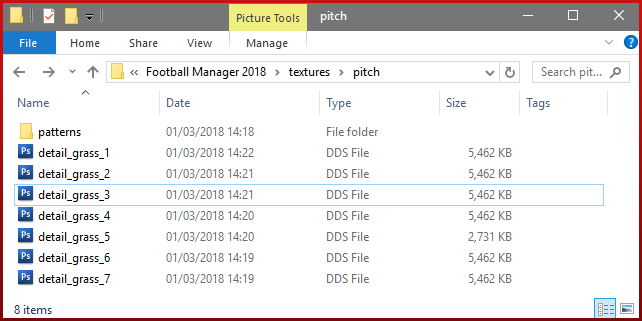
If done correctly your pitch folder should look something like this:


3. Editing the Pitch Patterns.

The other thing you can do is edit the pitch patterns used by the game. However it isn't possible to assign patterns to certain teams nor can you create new patterns all you can do is edit or replace the existing patterns.

To edit the patterns when extracting the pitch files you should have a 'patterns' folder inside the pitch folder, all you need to do is copy this folder and it's contents into the pitch folder you created above and if done correctly it should look like my above screenshot.


4. Finishing Up.

Now that you have installed your custom pitch files load up the game and your new pitches should now be used by the game.

If they aren't showing then from the Preferences -> Interface Screen turn off the skin cache, confirm your changes and then exit and restart FM to get it to reload the textures.

If that doesn't work check what pitch type your stadium uses as if you aren't using a grass pitch the files for the other types will override them, and have a check of the other matches to see if any of them are being used. If none are showing then go back through the guide as you have made a mistake somewhere.

---
Redistribution Terms
You are free to post this content to your website provided:
1. It is not sold or behind a paywall.
2. You don't advertise it as being exclusive to your website.
3. My username and blog address are included: http://michaeltmurrayuk.blogspot.co.uk/


If you have any questions then the best place to ask them is in the Skinning Forums at the Official SIGames Forums where I can be found most days.

If you like my work then feel free to send me a donation this is completely optional all of my content is and will always be free to access.